The problem: the archive only works for the people who built it
Most company archives grow over years. Contracts sit in one shared drive, invoices in another, policies in SharePoint, and old project folders on a local server. Each folder made sense to the person who created it. For everyone else, finding a file means guessing a folder name, opening five PDFs, or asking the one colleague who remembers.
That costs time every day. It also creates risk: people work from an old version of a policy because they found that one first, or they ask for a document by email that was filed months ago.
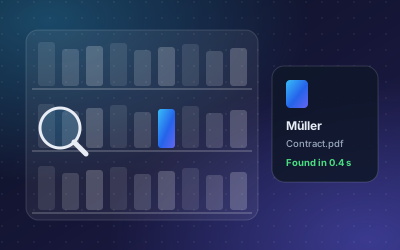
Search inside a file system does not fix this. It matches file names and exact words. It does not answer the question people actually ask, such as "Is our insurance certificate still valid?" or "Where is the signed contract for the Müller project?"
How DoclyChat handles it
DoclyChat connects to the places your files already live and turns them into one archive you can talk to.
- Connect your sources. Google Drive, SharePoint, local folders, WordPress and manual uploads. You do not need to move or rename anything.
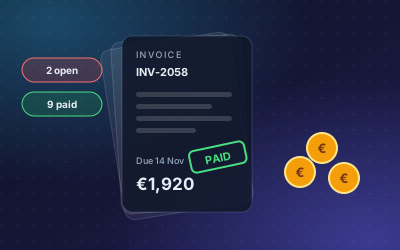
- Indexing and sync. Contracts, invoices, statements and policies are parsed and indexed. When a file changes in the source, the archive is kept in sync.
- Plain-language questions. Ask the way you would ask a colleague, in English or German.
- Answers with a source. Every answer links to the document and page it came from, so anyone can open the file and check it.
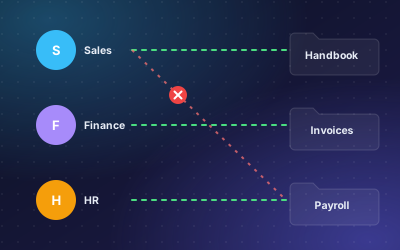
- Permissions respected. Per-folder and per-file access control means people only get answers from files they are allowed to see.
The point of the citation is trust. A short answer is useful, but a short answer with the file name and page is something you can act on. You can read more about why this matters in grounded AI answers with citations.
A worked example
A project manager needs the signed contract for a customer before a site meeting. She does not know who filed it or where.
Question: Where is the signed Müller contract?
Answer: It is in Projects → Müller Heizung → 2026 → Contracts. It was uploaded on 12 March 2026 and has 4 pages.
Source: Contract_Mueller_signed.pdf
She can follow up in the same chat without starting again:
Question: Is our insurance certificate current?
Answer: Yes, it is valid until 31 December 2026. It is filed under Company → Insurance.
Source: Insurance certificate 2026
Both answers point to a real file. If the answer looks wrong, the source shows why, and the fix is usually in the file itself.
How to set it up
- Create a free account. No credit card is needed to start.
- Connect your first source, for example the shared drive that holds your contracts. Start with one folder rather than everything.
- Wait for the first sync to finish. Larger archives take longer, and you can check the status in the app.
- Set folder and file permissions so each team only sees what it should.
- Ask ten questions your team asks every week. Open the cited files and check the answers.
- Add the next source once the first one works the way you want.
- Put the chat where people work: on your intranet as a widget, or inside ChatGPT, Claude or Cursor through the MCP connector.
Who it suits
An archive chatbot helps most where many people need files that few people filed:
- Trade and service companies with project folders per customer.
- Offices with contracts, insurance documents and certificates that expire.
- Firms that keep client files for years and need to find them quickly.
- Teams that work from SharePoint and Google Drive at the same time.
What to watch out for
- It can only answer from what is connected. If a contract was never uploaded or sits in a folder you did not connect, the chatbot cannot find it.
- Old versions confuse people and machines alike. If three drafts of a policy sit next to the final one, clean that up or mark the final version clearly in the file name.
- Permissions come first. Decide who may see payroll, HR and client folders before you invite the whole company.
- Plans differ in how many sources you can connect. Check the pricing page before you plan a large rollout.
Next step
Pick the folder your team searches most often and connect it. If you want a broader plan for turning your files into a company assistant, read how to build a company knowledge base chatbot. When you are ready, start free and ask your first question within the same session.