Most companies do not lack information. They lack a quick way to find it. Policies sit in SharePoint, contracts in a Google Drive folder, the onboarding checklist in someone's personal files. New staff ask colleagues, and colleagues stop what they are doing to search.
A knowledge base chatbot answers those questions from your own files and shows the source. Building one is less about AI and more about good housekeeping. This guide covers the steps that matter.
Key takeaways
- Clean files beat clever settings. Remove duplicates and outdated versions before you connect.
- Permissions must follow your folders, so people only get answers from files they may open.
- Test with 20 to 30 real questions and a written answer key before rollout.
- Roll out to one team first, then widen.
Step 1: Decide what the chatbot is for
Pick one or two clear jobs. A chatbot that tries to answer everything from day one is hard to test. Good first jobs:
- Staff onboarding. Handbook, benefits, IT setup, safety rules. See the staff onboarding use case.
- Company archive. Contracts, certificates, project files. See the company document archive use case.
- Internal procedures. How to file expenses, approve purchases or request leave.
Write down the five questions you hear most often for each job. Those become your first test set.
Also name an owner. Someone has to decide which folders go in, answer the "why did it say that?" questions in the first weeks, and keep documents current afterwards. In a small company this is often the office manager or the person who already maintains the shared drive. It does not need to be someone technical. It needs to be someone who knows where things are filed and who is allowed to see them.
Step 2: Prepare your files
The chatbot reads what you give it. If the folder holds three versions of the travel policy, it may quote the wrong one. Spend an afternoon on this before you connect anything.
- Remove duplicates and drafts. Keep one current version of each document. Move old versions to an archive folder you do not connect.
- Use clear file names. "Travel_Policy_2026.pdf" helps both people and the chatbot. "scan0034.pdf" helps nobody.
- Check scanned PDFs. Very poor scans are hard to read for any system. Replace them with better copies where you can.
- Put dates in the document. A policy that says "valid from 1 January 2026" lets the chatbot answer questions about what applies now.
- Fill gaps. If people often ask something that is not written down anywhere, write a short page for it. A chatbot cannot answer from knowledge that only lives in someone's head.
Step 3: Connect Google Drive and SharePoint
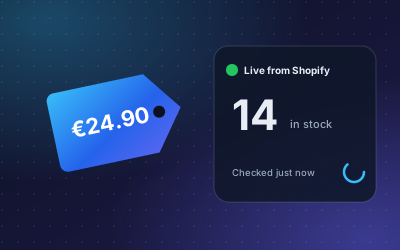
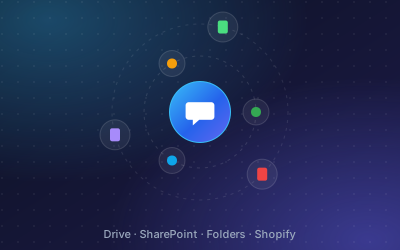
With DoclyChat you connect the storage you already use: Google Drive, SharePoint, local folders, WordPress or manual uploads. You do not need to move or rebuild your folders. DoclyChat indexes the files and keeps them in sync as they change, so an updated policy replaces the old one in the answers.
Start narrow. Connect one shared drive or one SharePoint site rather than everything. You can add more sources later. A smaller set makes testing faster and mistakes easier to spot.
After connecting, wait for indexing to finish. Large folders take longer. Then check that the files you expect are listed as synced, and that nothing sensitive came in by accident.
Step 4: Set permissions that match your folders
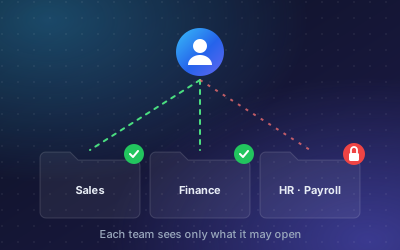
Not every employee should see every file. Payroll, management minutes and HR cases need tighter access than the employee handbook. The chatbot must respect the same boundaries, or it becomes a way around them.
Plan access in three layers:
- Everyone: handbook, policies, IT guides, office information.
- Team folders: sales material for sales, project files for project teams.
- Restricted: payroll, HR files, contracts with confidential terms.
DoclyChat supports per-folder and per-file access control, so each team only gets answers from the files it may open. A good test question is one your team should not be able to answer:
Question: Can the sales team see the payroll folder?
Answer: No. The payroll folder is limited to HR and management. Sales can see only the customer folders assigned to them.
Source: Folder permissions, Payroll
For the reasoning behind this, read multi-tenant permissions explained.
Step 5: Test with real questions
Do not test with questions you invent at your desk. Use questions people actually asked in the last month, from email, chat and the help desk. Aim for 20 to 30. For each one, write down the correct answer and the file it comes from before you ask the chatbot.
Then score each answer:
| Result | What it usually means | What to do |
|---|---|---|
| Correct, with the right source | Working as intended. | Nothing. |
| Correct, wrong or old source | Duplicate or outdated file in the folder. | Remove the old version. |
| "Not found" | The answer is not in the connected files. | Add the document or write one. |
| Wrong answer | Unclear or conflicting documents. | Fix the source text, then test again. |
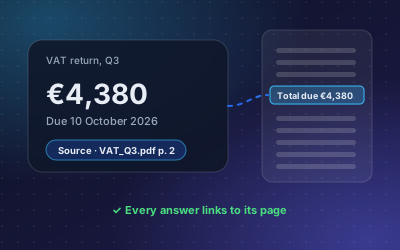
Pay special attention to the source on every answer. If staff cannot see where an answer came from, they cannot check it, and trust drops quickly. Our post on grounded answers with citations explains why this matters.
Mix the question types. A good test set includes simple lookups ("Where is the employee handbook?"), questions that need a date ("Is our insurance certificate current?"), questions with a number ("How many vacation days do new hires get?") and at least three questions whose answer is not in the files at all. The last group shows whether the chatbot admits it does not know, which matters as much as getting the rest right.
Also test in each language your team uses. DoclyChat answers in English and German.
Step 6: Roll out
Use this checklist when you go live:
- Test set passes, with sources on every answer.
- Permission test passes for at least two roles.
- One owner is named for keeping the files current.
- Staff know what the chatbot is for and what it is not for.
- There is a simple way to report a wrong answer.
- The chat is placed where people already work, for example on the intranet.
- You review usage after two weeks and look at the questions that got no answer.
Unanswered questions are the most useful data you will get. Each one points to a missing or unclear document. Fix the document and the chatbot improves with it.
Keeping it useful
A knowledge base chatbot is not a one-time project. Policies change, people leave, new products arrive. Because DoclyChat keeps connected sources in sync, the main ongoing work is keeping the files themselves accurate. Put a quarterly review on the calendar for the owner of each folder.
You can try this with a single folder on the free plan. Create an account, connect one Google Drive or SharePoint folder, and run your test set. No credit card is needed.