Shoppers ask a chatbot the same things they would ask a person in a shop. Does this fit? What does it cost? Is it in stock in my size? The first question can be answered from a product description. The last two change during the day, and a chatbot that answers them from old data will be wrong at the worst moment.
This article explains the difference between static product text and live lookups, how DoclyChat uses both, and how to connect a Shopify or WooCommerce store.
Key takeaways
- Product descriptions, sizes and policies change rarely. They can be synced into the knowledge base.
- Price and stock change often. They should be checked live when a shopper asks.
- DoclyChat syncs your store content and checks current price and stock before it answers.
- Test with a product you just changed, to see whether the answer follows.
Static product text versus live data
Store data falls into two groups.
| Type | Examples | How often it changes | Best approach |
|---|---|---|---|
| Static content | Descriptions, materials, dimensions, care instructions, shipping and return pages | Weeks or months | Sync into the knowledge base |
| Live data | Current price, sale price, stock per variant | Hours or minutes | Look up at the moment of the question |
Static content suits retrieval. The chatbot searches the synced text, finds the right passage and cites it. Answers like "the cover is 100% cotton" stay correct for a long time.
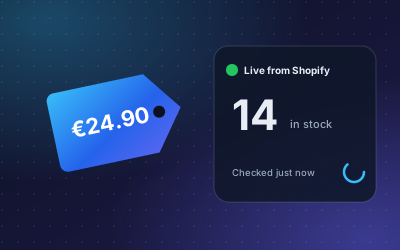
Price and stock are different. Even a sync that runs regularly leaves gaps. A flash sale starts, the last three units sell, and the knowledge base still holds the old figures. A live lookup asks the store at the moment the shopper asks.
You need both, not one or the other. Live data alone cannot tell a shopper whether a jacket is waterproof or which charger fits their device. That information sits in your descriptions and pages. Synced text alone cannot tell them whether size 43 is available this afternoon. A good shop assistant uses synced content to understand the product and the question, and a live lookup for the figures that move.
There is a second reason to keep price and stock live: your store is already the place where those figures are correct. Copying them somewhere else creates a second version that can drift. Asking the store directly avoids that.
How live data reaches the assistant
When a question involves price or stock, the assistant calls the store directly instead of relying only on synced text. The flow looks like this:
- The shopper asks about a product, for example by name or SKU.
- The assistant finds the matching product in the synced catalog.
- It checks the current price and stock in the connected Shopify or WooCommerce store.
- It answers with the live figures and links to the product page.
Question: How many units of SKU-1042 are in stock?
Answer: 14 units, checked live.
Source: Live from your shop
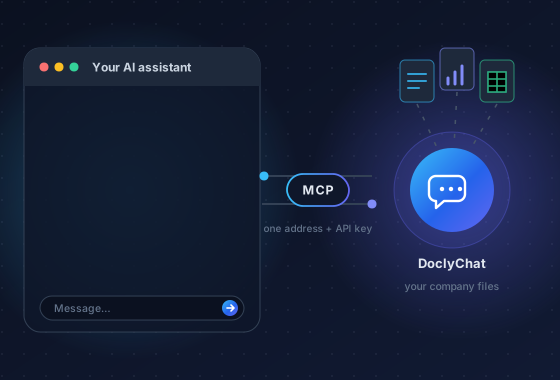
The same live lookup is available to your own team through MCP. The check_shop_live_data tool lets ChatGPT, Claude or another MCP client check a price or stock level in your connected store. See the MCP page for details.
What the assistant can answer
With both static content and live data connected, a shop assistant covers most pre-sale questions:
- Product details: sizes, materials, compatibility and use, from your product pages. See shop product answers.
- Price and stock: current figures, checked before the answer. See live price and stock.
- Recommendations and comparisons: the right product for a need, or two products side by side.
- Policies and shipping: return windows, delivery times and store rules, from your policy pages.
Answers come in the shopper's language and link straight to the matching product pages.
Setting up Shopify
- Install the DoclyChat app from the Shopify admin and approve the connection. The app asks only for read access to products and content.
- Choose what to sync. Tick products, pages and blog articles. Pages and articles are where shipping, returns and policy content usually lives.
- Check the sync. Open Apps → DoclyChat in the Shopify admin. The knowledge base overview shows the synced products.
- Switch the chat on. Open the theme editor and enable the DoclyChat app embed. The chat bubble then appears on your storefront.
- Ask a test question on the storefront, for example what a product costs.
On the Free plan, a Shopify shop syncs up to 25 products, pages and articles. Paid plans sync everything. This is enough to try the assistant on a few best-sellers before you decide.
Setting up WooCommerce
- Install the DoclyChat plugin in WordPress and open DoclyChat in the admin sidebar.
- Click Connect to DoclyChat. Sign in, pick or create a business, and choose a plan. Free is available. The Chatbot ID is filled in for you.
- Content starts syncing. Connecting adds the site as a content source, so public posts and pages start syncing automatically. WooCommerce products are read from the shop's public product feed, so no API keys are needed.
- Adjust the widget. Set the colour, corner, welcome message and on which pages it appears, then save.
Testing before you rely on it
Run these checks after setup:
- Change a price on a test product and ask the assistant for it. The answer should show the new price.
- Set a variant to zero stock and ask whether it is available. The answer should say no.
- Ask a policy question, such as the return window for sale items, and check the cited page.
- Ask about a product you do not sell. The assistant should say so, not invent one.
- Ask in a second language if your shoppers use one.
Keep a short log of what you tested and the result. When you change themes, add a new product range or update your return policy, run the same checks again.
Also look at your own product pages with a shopper's eyes. If a description does not state the material or the dimensions, the assistant cannot either. Filling those gaps improves both the chat answers and the product pages themselves.
If an answer about a description is outdated, check that the sync has run since your change. If a price or stock answer is outdated, check that the store connection is still active. Through MCP, get_ingestion_status shows when each connector last synced.
Getting started
A sensible first step is small: sync a handful of best-sellers and your shipping and returns pages, switch the chat on, and read the questions shoppers ask in the first week. They show you which product details are missing.
Online shops can see more examples on the e-commerce and retail page. To try it on your own store, create a free account. No credit card is needed.