Many teams already work in ChatGPT, Claude or an AI coding editor every day. The problem is that these assistants know nothing about your company. They have not read your contracts, your price list or last year's financial statement. So people copy and paste documents into the chat, which is slow and easy to get wrong.
The Model Context Protocol, MCP, solves this in a cleaner way. This guide explains what MCP is, how to connect your company documents to ChatGPT, Claude and other tools through DoclyChat, and what to watch for on security.
Key takeaways
- MCP is an open standard that lets an AI assistant call tools in other apps.
- With DoclyChat connected, your assistant asks DoclyChat and gets back an answer with the document and page.
- ChatGPT and Claude need one connector link. Developer tools need a short config file.
- Your API key works like a password. Keep it private and regenerate it if it leaks.
What MCP is, in plain English
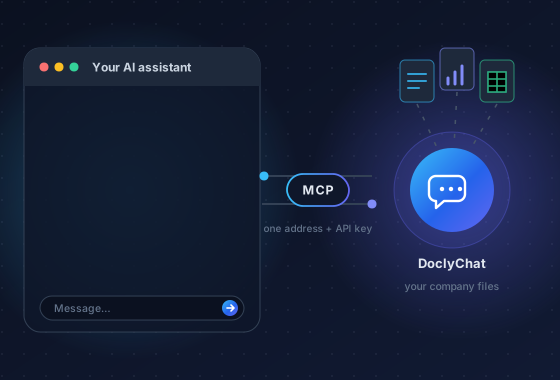
MCP (Model Context Protocol) is an open protocol for connecting AI assistants to outside apps. Think of it as a standard plug. An app that offers an MCP server describes a set of tools, such as "search the knowledge base" or "check stock". An AI assistant that supports MCP, called an MCP client, can see those tools and call them when a question needs them.
The flow is simple:
- You ask a question in ChatGPT, Claude or another AI tool, the way you always do.
- The assistant sees the question is about your company and calls DoclyChat.
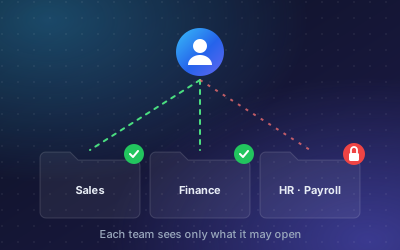
- DoclyChat finds the answer in your knowledge base, only in what your account may see.
- The answer comes back with the document and page, so you can check it.
Question: What notice period applies to our office lease?
Answer: Six months to the end of a quarter, in writing (§ 4.2). An option to extend by five years is in § 4.4.
Source: Office_Lease_2021.pdf, p. 3
What your assistant can do with DoclyChat
DoclyChat's MCP server at https://doclychat.com/mcp offers several tools. Your assistant picks the right one by itself. The main ones:
| Tool | What it does |
|---|---|
ask_chatbot | Asks your DoclyChat chatbot a question, exactly like the chat widget would. |
search_knowledge_base | Returns matching passages from your documents, without a composed answer. |
get_financial_statements | Lists ingested financial statements and their line items (Financial Data add-on). |
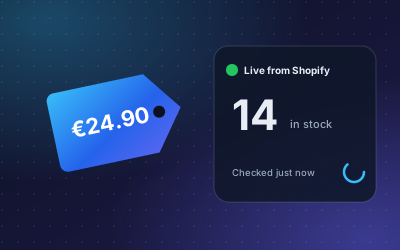
check_shop_live_data | Looks up live price and stock in a connected Shopify or WooCommerce store. |
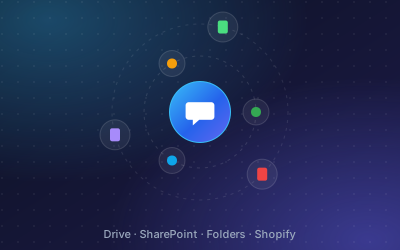
get_ingestion_status | Shows the sync status of each connected source, such as Drive, SharePoint or Shopify. |
The full list, with parameters and example calls, is on the MCP page.
Setup, client by client
Everything starts in DoclyChat. Sign in, open Settings → MCP server and copy the connector URL. Your key is already built into that link. Then add it to your tool.
ChatGPT
Custom connectors run through ChatGPT's developer mode on Plus, Pro, Business, Enterprise and Edu plans. Open Settings → Apps & Connectors → Advanced settings, turn on developer mode, then go back and click Create. Name it DoclyChat and paste the connector URL. On Business and Enterprise, a workspace admin may have to allow custom connectors first.
Claude
On Claude Pro, Max, Team and Enterprise, open Settings → Connectors and click Add custom connector. Paste the URL and click Add. Once added, the connector works on claude.ai, in Claude Desktop and in the mobile apps. On Team and Enterprise an owner adds it under admin settings first.
Claude Code
Run one command in your terminal to register DoclyChat as an MCP server. Then type /mcp inside Claude Code to see the tools.
Cursor, VS Code, Windsurf and Cline
These editors read a JSON config: .cursor/mcp.json for Cursor, .vscode/mcp.json for VS Code with GitHub Copilot in agent mode, mcp_config.json for Windsurf, and the MCP Servers panel in Cline. Paste the snippet from the MCP page, save, and the DoclyChat tools appear.
Anything else
Any client that supports remote MCP over HTTP can connect. Point it at https://doclychat.com/mcp and send your key in an X-Api-Key header. If the tool only accepts a URL, use the form with the key at the end.
To check it works, ask a question and look for a small note that the assistant is calling DoclyChat. The answer should name a document from your own files.
Security notes
Connecting an AI tool to company data deserves a few minutes of thought. These points apply to any MCP server, not only ours.
- Know what the key can reach. A DoclyChat API key belongs to one account and its knowledge base. Anyone who has the key or the connector link can ask that DoclyChat. Treat both like a password.
- Do not paste keys into shared places. Keep them out of chat messages, tickets and config files that get committed to a shared repository.
- Rotate when in doubt. If a key may have leaked, or someone with access leaves the company, click Regenerate next to the API key in DoclyChat. The old key stops working, so update your tools with the new one.
- Understand where answers go. Your files stay in DoclyChat. For each question, your AI tool receives only the answer and passages DoclyChat sends back, and handles them under that tool's own terms. Check those terms against your company policy.
- Use separate accounts for separate data. If a group must never see certain documents, keep those documents in a separate account rather than relying on people to ask the right questions.
Common problems
- 401 or unauthorized. The key is wrong or was regenerated. Copy it again from Settings.
- No Create button in ChatGPT. Turn on developer mode first, or ask your workspace admin to allow custom connectors.
- Connected but no tools. Restart the app or reload its MCP servers.
- Nothing happens in the chat. In ChatGPT and Claude, switch DoclyChat on in that chat's tools menu first.
MCP or the chat widget?
DoclyChat can also run as a chat widget on your website or intranet. The two serve different people, and many companies use both.
- The chat widget is for customers and staff who come to your site or intranet. They do not need an AI subscription of their own.
- MCP is for you and your team. It brings DoclyChat into the AI assistant you already work in, so you can mix company answers with drafting, analysis or coding in one conversation.
Both answer from the same documents, with the same sources. A practical example: a controller drafts a board summary in Claude. Claude asks DoclyChat for the revenue figures from the last two annual statements, gets them back with page references, and the controller checks both pages before sending. The writing happens in Claude. The facts come from DoclyChat.
Costs and getting started
Questions answered through MCP use your normal chat credits, the same as questions in the DoclyChat chat. There is no separate MCP fee. Plans are on the pricing page.
The quality of the answers depends on the documents behind them. If you have not set up a knowledge base yet, read how to build a company knowledge-base chatbot first. Then create a free account, connect a folder, and paste your connector link into the AI tool you already use.