The problem: a wrong stock answer costs more than no answer
"Is it in stock?" and "What does it cost?" are two of the most common questions in any shop. They are also the two answers that change most often. A sale starts, a product sells out, a new delivery arrives.
A chatbot that answers from a copy of your catalog can be hours out of date. If it tells a shopper that six pairs are in stock and the last one sold an hour ago, you get a disappointed customer, a cancelled order and a support email.
The same problem applies inside your team. Staff who answer phone or email questions need the current number, not the one from this morning.
How DoclyChat handles it
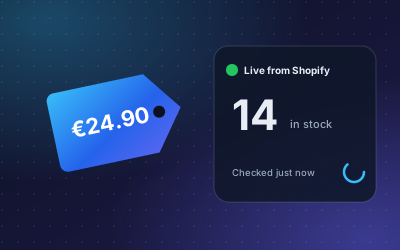
- Live check before answering. When a question is about price or stock, the assistant checks the current values in your connected Shopify or WooCommerce store before it answers.
- Product knowledge from your pages. Descriptions, variants and collections come from the synced catalog. The live check adds the numbers that change.
- Source shown. The answer says that the price or stock was checked live, so shoppers and staff know how current it is.
- For your team too. Through the MCP connector, you can ask ChatGPT or Claude about live stock in your store. The live price and stock lookup is one of DoclyChat's MCP tools.
- Read-only. The check reads values from your store. It does not change prices or stock.
A worked example
A shopper is about to order several units and wants to be sure.
Question: How many units of SKU-1042 are in stock?
Answer: 14 units are in stock right now.
Source: Checked live in your shop
A member of staff asks the same kind of question from Claude while writing a reply to a wholesale customer:
Question: Is the trail running shoe in size 43 in stock?
Answer: Yes, 6 pairs in size 43, ready to ship today.
Source: Live from your shop
In both cases the number comes from the store at the moment of the question, not from a copy.
How to set it up
- Create a free account. No credit card is needed.
- Connect your store: install the DoclyChat app in Shopify, or connect your WooCommerce store.
- Let the first catalog sync finish, so the assistant knows your products, variants and SKUs.
- Switch on the chat widget on your storefront.
- Test with a product whose stock you know. Change the stock in your shop admin and ask again.
- Optional: connect your AI tool through MCP so your team can check live stock from ChatGPT, Claude or Cursor.
Who it suits
- Shops with limited stock, drops or fast-selling items.
- Shops with many variants, where stock differs by size or color.
- Teams that answer price and stock questions by phone or email. See e-commerce and retail.
What to watch out for
- Live is only as good as your shop data. If stock is not tracked for a product in your shop admin, there is nothing live to check.
- Stock can change after the answer. A live check is current at the moment of the question. It does not reserve stock.
- Say what happens when stock runs out. If your product pages mention restock dates or back-order rules, the assistant can pass them on. If they do not, it can only report the current number.
- Use clear SKUs and variant names. They make it easier to match a shopper's question to the right product.
- Plan limits apply to the catalog sync. With a Shopify shop the Free plan syncs up to 25 products, pages and articles. See the pricing page.
Why not just sync more often?
Syncing the catalog keeps descriptions, variants and pages current, and that is enough for text that changes rarely. Price and stock are different: they can change several times a day, and a sale or a large order can change them within minutes. Checking those two values live at the moment of the question avoids the gap between syncs, without syncing the whole catalog all the time. The synced catalog tells the assistant what a product is; the live check tells it what the product costs and how many are left right now.
Next step
Connect your store and test one product whose stock you change by hand. Seeing the answer follow the change is the quickest way to trust it. For the full setup, read how to connect Shopify or WooCommerce to an AI chatbot, then start free.